Getting started

Pixozy setup guide

Start with one product and follow design, binding and storefront setup. A name design is the first example; then explore photo, color and specialty design checks.

For Shopify and SHOPLINE: different installation links, the same workflow inside Pixozy.

Already installed Pixozy?

Open Pixozy from Apps in your store admin, then start in Artworks. Skip installation and start with Design, or go straight to Connect a product if your design is ready.

Start creating a design →Have a design? Connect a product →

Installing Pixozy does not automatically add a customization form to your product page. You also need a design, a published product binding, and a Pixozy block in your theme.

Have these three things ready

  • A store account that can manage apps and edit themes
  • A dedicated test product, ideally with a single sellable variant
  • A product mockup image and a name buyers can personalize

Already trading? Use a dedicated test product and a theme copy or preview where your platform supports it. Until verified, do not replace your current theme or directly change products that customers are buying.

Three names you’ll see
Design (Artwork)
What buyers can change, such as the name on a product.
Product binding (Campaign)
Which product, colors and sizes use that design.
Theme block (App block)
Where the customization form appears on the product page.

Install and open Pixozy

Where to goApp marketplace → Pixozy; already installed: store admin → Apps → Pixozy

  1. Use the official installation link below, select your store, review the permissions and follow the platform’s authorization steps.
  2. Open Pixozy from your store admin. If a trial or plan prompt appears, review the terms shown by the platform before confirming.

Install on Shopify ↗ · Install on SHOPLINE ↗

Stuck on this step?

Subscribed but cannot get in? Reopen Pixozy from the store admin. Do not pay again; contact support with a redacted status screenshot.

You’re done when

Pixozy opens for the correct store and you can access Artworks.

Next: Make a design with a name field →
Make a design with a name field

Where to goPixozy → Artworks → Create artwork

  1. If there are no categories to select, return to Artworks. Use + beside All in the left category panel to create a category such as Name designs, then choose Create artwork again. Categories simply organize your designs.
  2. Enter a design name, category and canvas size, then open the editor. Default dimensions are fine for practice only. Confirm the required file dimensions with your production partner before using the design for production.
  3. Add a text layer with the sample name Milo. Set its position, size and color on the canvas. You will add the product mockup in the “Connect the product” step.
  4. Enable personalization in the text layer’s settings, set an option title such as Your name, and use a regular input field so buyers can change the name. Leave more complex options for later.
  5. Save the design and reopen it to check it was saved. Preview a different name and make sure it fits inside the canvas.
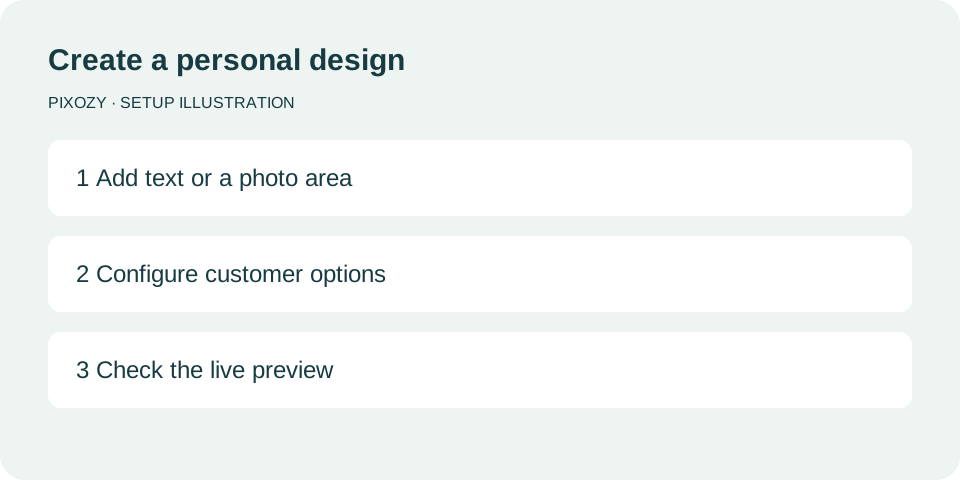
See a setup exampleMake a design with a name field: setup illustration, click to enlarge

Setup illustration, not an app screenshot. Follow the labels in your app.

Stuck on this step?

Only seeing fixed text? Check that personalization is enabled on the text layer. Text baked into a mockup image is not an editable field.

You’re done when

Your design is saved, and changing the name changes the matching text in the preview.

Next: Check the result of customer choices →

Check the result of customer choices

Where to goDesign editor → Preview form on the right

  1. Enable Live preview, or enter your choices and click Preview result. Check the generated result on the right rather than relying on the editing canvas.
  2. Try two different name lengths and check for clipping or overlap. If your design offers color or artwork choices, test those options too.
  3. For conditional choices such as number of people, try one and several people. Check that the name fields and artwork update together.
  4. Save the design and reopen it to check the configuration. Practice input in the preview form tests the customer experience; it does not change the layer defaults.
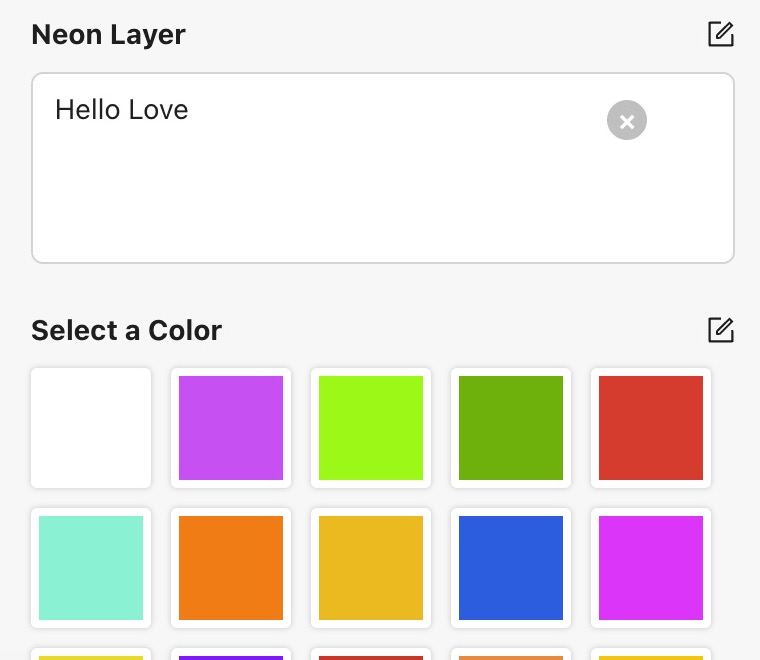
See a setup exampleCheck the result of customer choices: feature capture, click to enlarge

Example: enter text and choose a color in a neon design’s preview form. Available options depend on the design.

Stuck on this step?

Nothing changed? Check Live preview and the option’s layer association. Next, connect the saved design to a product.

You’re done when

After changing the name or another configured option, the generated preview matches the input with the correct text and artwork placement.

Next: Connect the design to a product and publish →

Connect the design to a product and publish

Where to goPixozy → Campaigns

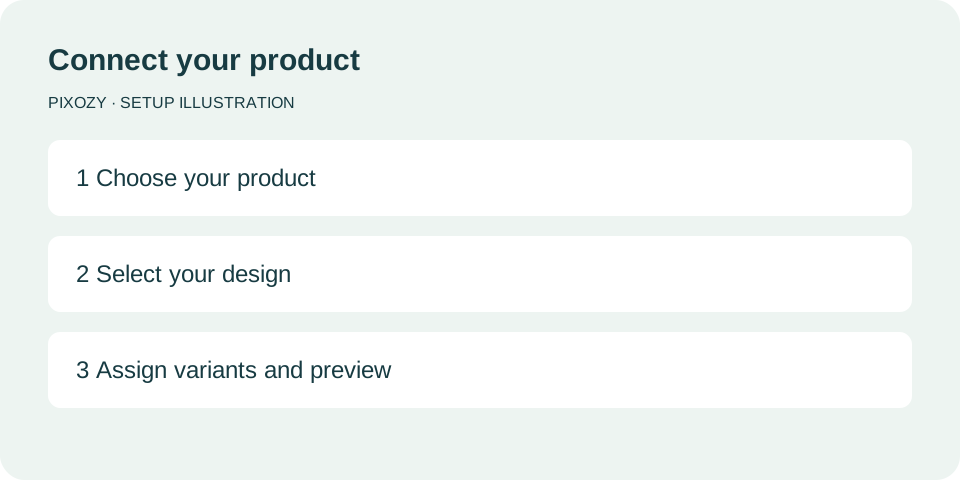
  1. Create and name a campaign, select your test product and connect the design. Here, a campaign means a product-to-design binding, not an advertising campaign.
  2. In Mockup, add your product image. Click the pencil at its top right (Edit mockup) to open the Mockup editor.
  3. Choose Add print area and select your connected design. Adjust its position and size on the product image. Enable Preview artwork, check the name, then Save. This changes the mockup, not the production file dimensions.
  4. On the mockup, choose Assign variants, select the matching colors or sizes and confirm. Connect images to every variant. A single-variant test product makes this easier.
  5. Save and return to the list, complete the update action and confirm the published status is on. Saving a design or campaign draft alone does not enable it for buyers. For later edits, use Save & update and check the published status again.
See a setup exampleConnect the design to a product and publish: setup illustration, click to enlarge

Setup illustration, not an app screenshot. Follow the labels in your app.

Stuck on this step?

Missing on one color or size? Check that variant’s binding. After changing a design, update the published content too.

You’re done when

The name design appears correctly on the mockup, every variant has an assigned image, and publication has succeeded.

Next: Place the form inside product information →

Place the form inside product information

Where to goStore admin → Online Store → Theme editor → Product page

First confirm the same test product and selected variant have a published design binding. Adding a theme block alone does not connect a design.

Check product binding and publication
  1. Choose the intended theme and the product template actually used by your test product, not the home page template.
  2. Inside Product information, choose Add block → Apps, then select Pixozy’s Customizer app block.
  3. Place it below the variant selector and above the buy buttons, then save. For a draft theme, preview and check it before deciding when to publish the theme.
Stuck on this step?

No app-block option? That section may not support app blocks; contact your theme developer or Pixozy support. No manual Liquid edits are needed. Avoid adding only an outer page section.

Where should the form go?

Product information

  1. Title and price
  2. Color / size selector
  3. Pixozy customization form
  4. Buy buttons
Suggested placement diagram, not an admin screenshot. Theme labels vary; reorder within a product information area that supports app blocks.

You’re done when

The theme preview shows the form between variant selection and buy buttons in product information.

Next: Try it as a buyer →

Pixozy at the page bottom? Note its settings, add and verify a block inside product information, then remove the duplicate outer block. Do not delete product details, product information or the buy buttons group.

Cannot add another block?

If you cannot add another block, keep screenshots of its settings and confirm you have a recoverable theme backup. Then remove only the old Pixozy block and add it in the intended area.

Without a backup, or if unsure which block to remove, contact support first. Do not delete the parent section or uninstall the app.

After changing or upgrading a theme, or assigning a new product template, recheck the block and its position. Settings from the old theme may not carry over.

Try it as a buyer

Where to goYour storefront → The product you just connected

  1. Start with your test product or theme preview. After publishing the theme, repeat these checks on the actual storefront; editor preview alone is not launch proof. Check that the form appears once on both desktop and mobile.
  2. Select a bound variant, enter Milo and preview it. Try another name to check that the result updates. Test image uploads or other options too, if you added them.
  3. Switch between other bound colors or sizes and check the form and preview. Unbound variants must not use this design by mistake.
  4. Add the product to the cart and check the product, variant, quantity and customization. No payment is needed for this step; a visible preview is not proof of saved order data.
Stuck on this step?

Visible in the editor but not the storefront? Check the current theme, the template actually assigned to this product, and that both theme changes and the campaign have been saved and published.

You’re done when

Customization works on desktop and mobile, and the cart retains the correct variant, quantity and buyer input.

FROM DESIGN TO PRODUCT

Choose the personalization your product needs.

Start with one simple design, then add choices. Test each change through the preview form.

Photo upload

  1. Open a design and add an image layer where the photo belongs.
  2. Configure customer upload for that layer and check the photo area and crop settings.
  3. Try landscape and portrait photos in the preview form and check the subject stays visible.

Artwork and color

  1. Prepare artwork or color categories in Resources.
  2. Connect a category to the relevant layer and choose which options customers can select.
  3. Switch each choice to check the correct layer changes. Configure inventory variants when connecting the product.

Neon

  1. Add a neon layer and set the default text.
  2. Enable font and color selection as needed and configure their choices.
  3. Try short and long text in the preview form. Check font, glow color and text boundaries.

Embroidery designs

  1. Confirm the production process and prepare suitable textured artwork.
  2. Configure the customer name field and color choices.
  3. Check the preview and production assets separately. Arrange embroidery digitizing if your factory requires stitch files.

Music theme

  1. Add a music layer and prepare text layers for the title and artist.
  2. Link song information to the corresponding layers.
  3. Select a song in the preview form and check title, artist and layout. A music-themed design does not imply built-in audio playback.
Start with a design →

Before inviting buyers

Check the order and production files

A working form is the first part of the journey. Complete these checks before launching to buyers.

  • App access works and the campaign is published.
  • The form is in the right place, with no duplicates on desktop or mobile.
  • The cart retains the correct variant, quantity and customization.
  • A safe test order and its production files have been checked, not just the preview.
How do I safely check an order?
  1. First confirm your store has a platform-supported test checkout method and that it will not charge real money. If unsure, contact support instead of paying just to test.
  2. Complete a personalized order using the confirmed test method. In Pixozy Orders, check the buyer’s text, preview and production files.
  3. Check that the production file matches the buyer’s name and the required dimensions and print area. If the order or files are missing, pause your launch.
Additional reference: Shopify production export and fulfillment

Select the order and refresh its shipping data. The merchant must manually download production CSV v2 and deliver it to their chosen factory. When tracking is available, import the tracking CSV and explicitly confirm Shopify fulfillment write-back.

  • Check the recipient name and shipping address for shipping labels and direct fulfillment; phone and email are optional for delivery exceptions and carrier notifications.
  • Pixozy does not automatically send the CSV to a factory. Protected fields are deleted after 90 days for terminal orders or no more than 365 days for non-terminal orders.

Need help?

Tell us which step stopped you

Send your platform, store domain, product link, theme name, step number and a redacted screenshot. Keep the block hierarchy and problem area visible. Never send passwords, access tokens, payment details or buyer personal information.

[email protected]